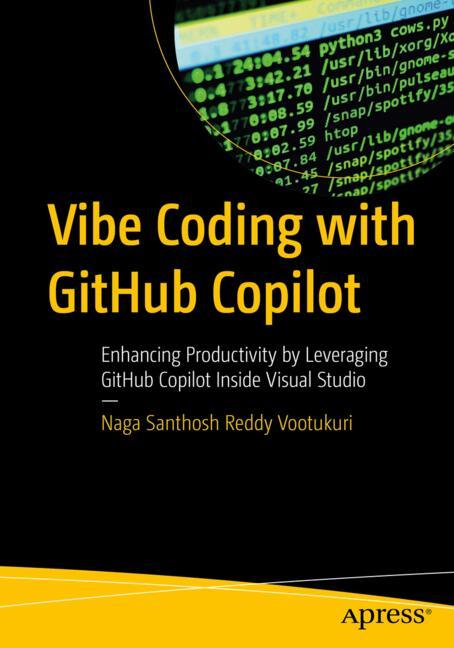
If you spent any time in a code editor last year, you probably felt that strange sensation of a ghostwriter sitting right next to you. One minute you’re struggling with a regex pattern, and the next, a grayed-out suggestion completes the entire logic block before you even finish typing the variable name. AI coding assistants have moved past being simple autocomplete gimmable tools; they are now active participants in the development lifecycle.

But as the landscape shifts, the “best” tool depends entirely on how much control you want to give up. Are you looking for a helpful sidekick that stays out of your way, or do you want an agent that can autonomously refactor entire directories? Today, we’re looking at the heavy hitters: GitHub Copilot, Cursor, and the newcomer, Claude Code.
The Reliable Veteran: GitHub Copilot
GitHub Copilot is the most familiar name in the room. It lives primarily as an extension within VS Code, IntelliJ, or Visual Studio. For most developers, it feels like an upgraded version of IntelliSense. It excels at the “micro” level—predicting the next line, suggesting boilerplate, and helping you write unit tests based on the context of your current file.
The main strength of Copilot is its integration with the GitHub ecosystem. Because it has access to vast amounts of open-source data, its ability to suggest standard patterns is incredibly high. However, because it operates mostly as a plugin, it sometimes lacks a “global” understanding of your entire codebase compared to tools built from the ground up.
Key Features of Copilot
- Inline completions that predict code as you type.
- Copilot Chat for asking questions about specific functions.
- Deep integration with GitHub repositories and PR descriptions.
- Support for almost every major IDE via extensions.
The Integrated Powerhouse: Cursor
Cursor isn’t just a plugin; it is a fork of VS Code. This distinction is massive. Because the developers built the editor itself, the AI isn’t just “looking” at your code—it is deeply aware of the entire project structure. When you ask Cursor a question, it isn’t just reading the open tab; it is indexing your entire folder to understand how a change in your API route might break a component in your frontend.
This “context awareness” is why many senior engineers are migrating to Cursor. You can use “@” symbols to reference specific files, folders, or even documentation URLs. It feels less like a chat window and as more like an intelligent layer sitting on top of your editor. If you are tired of copy-pasting code into a browser to ask for help, this is the tool that solves that headache.
Why Developers are Switching to Cursor
The biggest draw here is the “Composer” feature. You can give a high-level instruction like “Add a logout button to the header and ensure it clears the local storage,” and Cursor will attempt to modify multiple files simultaneously to achieve that goal. It is much more proactive than a standard autocomplete extension.
The Agentic Newcomer: Claude Code
Claude Code represents a different approach entirely. While Copilot and Cursor are focused on the editor experience, Claude Code is an agentic CLI (Command Line Interface) tool. It lives in your terminal. You don’t interact with it by typing code; you interact with it by giving it tasks.
Think of Claude Code as a junior developer you’ve hired to run terminal commands. You can tell it to “find all the deprecated API calls and update them to the new version,” and it will literally run the search, analyze the files, apply the edits, and even run your test suite to verify the changes. It operates with a level of autonomy that is both impressive and slightly terrifying if you aren’t monitoring it closely.
When to use Claude Code
This tool is perfect for heavy lifting and maintenance tasks. It shines during refactoring marathons or when you need to navigate a massive, unfamiliar codebase. Since it operates via the terminal, it’s incredibly lightweight and doesn’t require you to switch your entire workflow to a new IDE.
Direct Comparison: Feature and Pricing Breakdown
Choosing between these depends on your budget and your preferred workflow. Here is how the pricing and capabilities stack up.
| Feature | GitHub Copilot | Cursor | Claude Code |
|---|---|---|---|
| Primary Interface | IDE Extension | Standalone Forked IDE | Terminal / CLI |
| Context Depth | File-level / Open Tabs | Full Project Indexing | Agentic File Manipulation |
| Best For | Standard Autocomplete | Deep Codebase Understanding | Autonomous Task Execution |
| Pricing (Individual) | $10/month | $20/month (Pro) | Usage-based (Anthropic API) |
Which Tool Should You Choose?
Deciding which of these best AI tools to integrate into your workflow depends on your specific pain points. There is no single winner, only the right tool for the right job.
If you are a student or a developer working on isolated scripts, GitHub Copilot is a fantastic, low-cost way to boost your speed. It is reliable, stays out of your way, and is very easy to set up with a free trial period to test the waters.
However, if you are working on complex, multi-file web applications, Cursor is currently the gold standard. The ability to index your entire repository means the AI actually understands your architecture, which drastically reduces the “hallucinations” where the AI suggests code that doesn’t exist in your project.
Finally, if you find yourself spending hours on repetitive refactoring or debugging complex integration issues, Claude Code is worth the setup. It is less about “writing code” and more about “managing changes.”
Summary of Use Cases
- Use Copilot if: You want a lightweight, familiar experience that augments your existing IDE without changing your habits.
- Use Cursor if: You want the AI to have full context of your project and want to participate in multi-file editing.
- Use Claude Code if: You want an agent that can run terminal commands, execute tests, and perform autonomous maintenance.
The era of manual, line-by-line coding is fading. Whether you choose an extension, a new editor, or a terminal agent, the goal is the same: spend less time on syntax and more time on architecture and problem-solving.
Ready to level up your workflow? Pick one of these tools and try running a single, complex task with it this week. You’ll likely never want to go back to a “dumb” editor again.