Category: AI Reviews

  • How To Build An Automated Content Pipeline With Ai

    How To Build An Automated Content Pipeline With Ai

    If you’ve ever spent a Sunday afternoon staring at a blinking cursor, trying to figure out how to turn a single blog post into a week’s worth of LinkedIn updates, Twitter threads, and newsletter snippets, you know the exhaustion of manual content repurposing. It feels like a second job that never ends. But what if you could build a system that does the heavy lifting for you? An automated content pipeline isn’t about hitting a “generate” button and walking away; it’s about creating a workflow where AI handles the repetitive formatting and distribution tasks, leaving you to focus on the actual ideas.

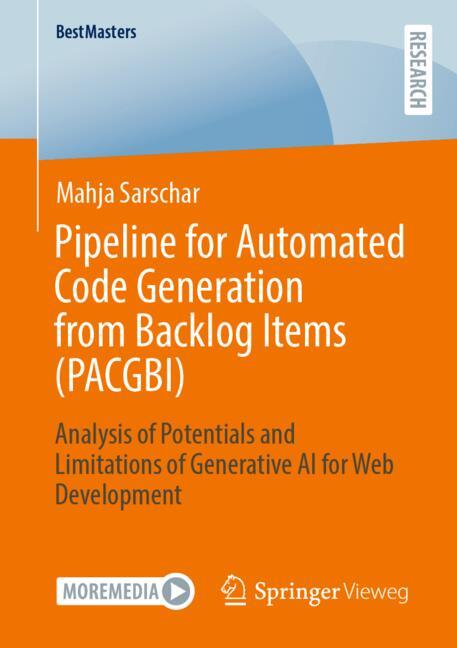
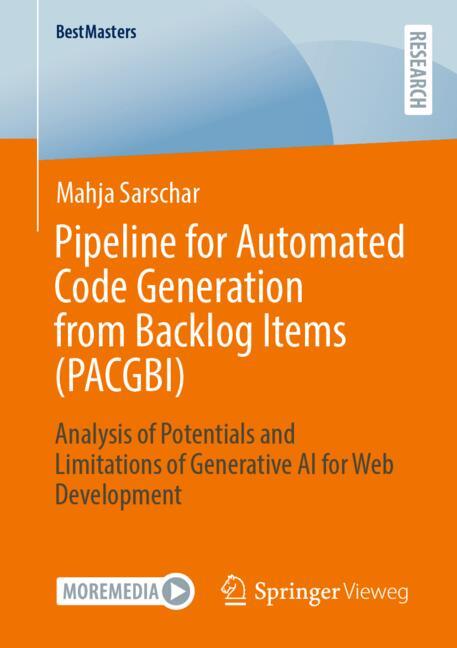
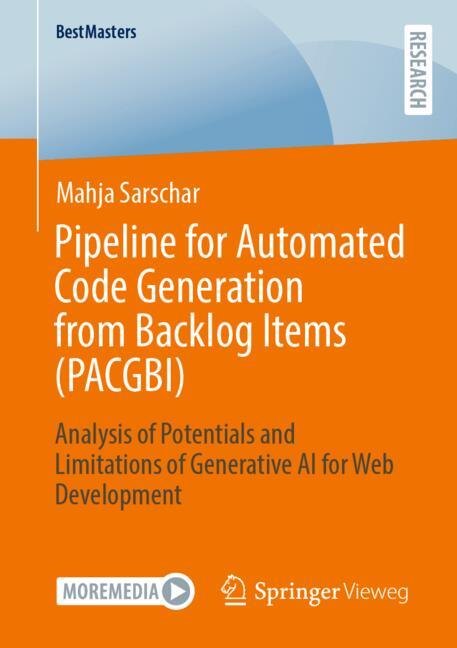
    Pipeline for Automated Code Generation from Backlog Items (PACGBI)

    Building this system requires a shift in how you view content creation. Instead of seeing a blog post as a finished product, think of it as raw material that feeds into a machine. This machine takes that material, processes it through various AI models, and spits out various formats across your social channels. Let’s walk through how to actually set this up without losing your brand voice in the process.

    The Blueprint of an Automated Workflow

    A functional pipeline consists of four distinct stages: Ideation, Generation, Transformation, and Distribution. You can’t just jump straight to distribution without a way to check if the AI actually followed your instructions. A common mistake is trying to automate the entire thing at once. Start by automating the transformation stage first, as that provides the quickest win for your schedule.

    First, you need a “source of truth.” This is usually a long-form piece of content, like a deep-dive article or a transcript from a YouTube video. Next, you need a “processor”—an LLM (Large Language Model) that understands your tone. Finally, you need a “connector” to move that data between your tools. Tools like Zapier or Make.com act as the glue here, moving text from a Google Doc to your social media scheduler automatically.

    Step 1: Capturing Raw Input

    Your pipeline is only as good as your input. If you feed the AI a low-quality transcript, you’ll get low-quality social posts. I recommend using tools like Otter.ai or Descript to transcribe your meetings or voice memos. These tools allow you to clean up the text before it ever hits the automation stage. If you use Descript, you can even use their “Underlord” feature to summarize the text immediately, which acts as a great first filter.

    Step 2: The Processing Engine

    This is where the heavy lifting happens. You need an LLM that can handle long contexts. While ChatGPT is the obvious choice, many professionals are looking for an alternative to the standard interface by using the API. Using the API via Make.com allows you to send a specific prompt—like “Rewrite this paragraph as a punchy LinkedIn post”—and receive the result directly in your database.

    Comparing the Best AI Engines for Content Processing

    Choosing the right model depends on whether you need creative flair or strict factual adherence. Here is a quick AI tool comparison to help you decide which brain to use for your pipeline.

    Model/Tool Best For Pricing Tier (Approx.) Key Feature
    GPT-4o (OpenAI) General purpose & Logic $20/mo (Plus) or API usage High reasoning capabilities
    Claude 3.5 Sonnet (Anthropic) Natural, human-like writing $20/mo (Pro) or API usage Avoids “AI-speak” better than GPT
    Gemini 1.5 Pro (Google) Massive documents/Video Included in Google One/Vertex AI Extremely large context window

    If you find that Claude produces text that sounds less like a robot, it’s worth testing Claude vs GPT-4o for your specific brand voice. For most social media automation, Claude’s ability to mimic nuance is a massive advantage.

    Connecting the Dots with Automation Platforms

    Once you have your engine, you need a way to move the text. This is where the “automation” part of the pipeline truly lives. You have two main contenders here: Zapier and Make.com.

    • Zapier: The most user-friendly option. It is incredibly easy to set up a “Zap” that triggers when a new row is added to a Google Sheet. However, it can get expensive quickly as you scale your task usage.
    • Make.com: This is the more powerful, visual alternative to Zapier. It allows for complex branching logic (e.g., “If the content is about Tech, post to LinkedIn; if it’s about Lifestyle, post to Instagram”). It is generally much cheaper for high-volume pipelines.

    A simple workflow might look like this: A new entry in Notion → Make.com triggers → Claude API processes the text into 5 tweets → The tweets are sent to a Buffer queue → Buffer schedules them.

    Managing the Output Quality

    The biggest danger of an automated pipeline is “set it and forget it” syndrome. If you don’t monitor the output, your brand will eventually start sounding like a generic bot. I suggest adding a “Human-in-the-loop” step. Instead of having the automation post directly to social media, have it send the drafts to a Trello board or a Notion database. You spend 10 minutes reviewing and hitting “Approve” before the final distribution happens.

    Building Your First Pipeline: A Checklist

    Don’t try to build a 10-step workflow on day one. Start small and expand as you trust the system. Follow these steps to get moving:

    1. Identify one repetitive task (e.g., turning a blog into a newsletter).
    2. Create a “Prompt Library” in a Google Doc containing your proven instructions.
    3. Set up a simple trigger using a tool like Notion or Airtable.
    4. Connect that trigger to an LLM via Make.com.
    5. Route the output to a “Review” folder rather than a live channel.
    6. Refine your prompts based on the first 10 outputs you review.

    As you refine the process, you can add more complex layers, such as using DALL-E 3 or Midjourney to automatically generate featured images for your posts based on the text generated in the previous step.

    Automating your content doesn’t mean you’ve stopped being a creator; it means you’ve stopped being a manual laborer. By building this pipeline, you free up your brain to do what it does best: thinking of the next big idea.

    Ready to stop wasting hours on repetitive formatting? Start by picking one single piece of content you’ve already written and try to manually run it through a Claude prompt today. Once you see the potential, you’ll be ready to build the machine.

    Our Top Picks

    Products we recommend:

    1. How to Build an Insect

    How to Build an Insect

    How to Build an Insect

    by BiggerBooks.com

    $19.57

    Check Price →

    2. How to Build an Insect

    How to Build an Insect

    How to Build an Insect

    by Knetbooks.com

    $19.87

    Check Price →

    3. How to Build an Insect

    How to Build an Insect

    How to Build an Insect

    by eCampus.com

    $14.99

    Check Price →

  • Local Ai Models You Can Run On Your Own Computer For Free

    Local Ai Models You Can Run On Your Own Computer For Free


    Ever felt that slight pang of anxiety when you realize your most private prompts and data are being fed into a massive corporate server? You aren’t alone. While ChatGPT and Claude are incredible, they come with a trade-off: privacy. Every question you ask becomes part of a dataset used to train future versions of their models. But what if you could have a high-functioning assistant that lives entirely on your hard drive, works without an internet connection, and never tells anyone what you’re working on?

    Models of Local Governance

    The good news is that this isn’t just a dream for developers anymore. Thanks to recent breakthroughs in model compression, you can now run surprisingly smart AI right on your laptop or desktop. You don’t need a supercomputer; you just need a decent amount of RAM and a bit of curiosity. If you are looking for a private alternative to cloud-based AI, running models locally is the way to go.

    Why bother running AI locally?

    Running models on your own hardware offers three main benefits that big-name providers simply cannot match. First, there is the privacy aspect. Since the data never leaves your machine, you can process sensitive documents, proprietary code, or personal journals without any risk of leaks. Second, there is the cost. Once you have the hardware, the pricing is effectively zero. You aren’t paying a monthly subscription to access a specific version of a model; you just download what you need.

    Lastly, there is the freedom to experiment. Cloud providers often implement “guardrails” that can sometimes make the AI too cautious or refuse to answer legitimate questions. When you run a model locally, you can choose “uncensored” versions that follow your instructions more literally. You are the boss of your own silicon.

    The best software to get you started

    Setting up a local environment used to involve writing complex Python scripts and managing messy dependencies. Fortunately, a few user-friendly tools have emerged that make this process as simple as clicking an installer. Here are the top contenders for your setup.

    Ollama: The easiest entry point

    If you want to be up and running in under five minutes, Ollama is your best bet. It functions much like Docker but for LLMs (Large Language Models). It runs in your system tray and allows you to pull models via a simple command line. It handles all the heavy lifting of managing model weights and memory allocation behind the scenes.

    LM Studio: The visual powerhouse

    For those who prefer a beautiful, clickable interface, LM Studio is incredible. It provides a built-in search engine to find models directly from Hugging Face (the “GitHub of AI”). You can see exactly how much RAM a model will use before you download it, which prevents you from crashing your computer with a model that is too large for your hardware.

    GPT4All: Great for older hardware

    If you are working on an older laptop without a dedicated GPU, GPT4All is a fantastic choice. It is highly optimized to run on CPUs, meaning you can still get decent responses even if you don’t have a high-end gaming rig. It also includes features to let you “chat” with your local documents, essentially creating your own private RAG (Retrieval-Augmented Generation) system.

    Comparing the top local AI tools

    Choosing the right software depends heavily on your technical comfort level and your hardware specs. Use this table to help decide which one fits your needs.

    ability to use GPU

    Tool Name Best For Difficulty Level Primary Feature
    Ollama Developers & Automation Excellent Easy Command-line simplicity
    LM Studio Visual Discovery Excellent Medium Easy model searching/downloading
    GPT4All Low-end Hardware Basic (CPU focus) Very Easy Chatting with local files
    Text-Generation-WebUI Power Users Maximum Hard Deep customization/extensions

    Choosing the right model for your hardware

    The software is just the engine; the “model” is the intelligence. When browsing for models, you will see numbers like 7B, 13B, or 70B. These represent the “parameters” or the size of the model’s brain. Generally, more parameters mean more intelligence but much higher hardware requirements.

    • 7B Models (e.g., Mistral, Llama 3 8B): These are the sweet spot for most people. They run fast on modern laptops with 8GB to 16GB of RAM and are surprisingly capable at reasoning and summarization.
    • 13B – 30B Models: These require more significant VRAM (usually 12GB+). They are noticeably better at following complex instructions and nuance but will be much slower on standard hardware.
    • 70B+ Models: These are the heavyweights. To run these smoothly, you likely need a high-end workstation with multiple GPUs or a Mac with massive Unified Memory (like an M2/M3 Ultra).

    One trick to remember is looking for “Quantized” models. You will often see terms like Q4_K_M or Q8_0. Quantization is a way of compressing the model so it takes up less space. A 4-bit quantization (Q4) is usually the best balance between speed and intelligence, as it significantly reduces memory usage with very little loss in accuracy.

    Hardware requirements: What do you actually need?

    You don’t need a liquid-cooled beast, but you can’t run these on a 10-year-old office PC either. The most important component is VRAM (Video RAM) on your graphics card, or Unified Memory on an Apple Silicon Mac.

    If you are using a PC, an NVIDIA RTX card with at least 8GB of VRAM is the gold standard because most local AI software is optimized for NVIDIA’s CUDA architecture. If you are on a Mac, any M-series chip (M1, M2, M3) will work beautifully because the system can use the main system RAM as video memory.

    If you are strictly using a CPU, ensure you have at least 16GB of fast DDR4 or DDR5 RAM. It will be slower—think reading speed rather than typing speed—but it is entirely functional for non-urgent tasks like summarizing long documents.

    Summary of the setup process

    Ready to dive in? Follow these steps to get your first local model running today:

    1. Download LM Studio: It is the most beginner-friendly way to start.
    2. Search for “Llama 3”: Look for a version labeled “GGUF” (this is the format most local tools use).
    3. Check your RAM: Ensure the model size (e.g., 5GB) fits comfortably within your available memory.
    4. Download and Load: Once downloaded, click “Load Model” and start typing in the chat window.

    Running your own AI is a bit of a learning curve, but the sense of ownership is worth it. You are no longer just a user of someone else’s technology; you are the host of your own intelligence.

    If you found this guide helpful, try downloading LM Studio tonight and see how much your computer can handle. If you run into any roadblocks with hardware compatibility, feel free to leave a comment below!

  • Ai Writing Assistants Compared: Which One Saves The Most Time

    Ai Writing Assistants Compared: Which One Saves The Most Time

    I remember sitting in front of a blinking cursor at 2 AM, staring at a blank Google Doc and wondering if I’d ever finish my weekly newsletter. The dread of the “blank page syndrome” is real, and it’s the biggest thief of productivity. Lately, everyone is talking about using AI to fix this, but the real question isn’t just “does it work?” It’s “which one actually cuts my workload in half?”

    Shop Assistants Shop Assistants CD

    If you’re looking for a way to stop manually drafting every single email, blog post, and social caption, you’re in the right place. We aren’t looking for the flashiest tool here; we are looking for the one that stops you from staring at that cursor. I’ve spent dozens of hours testing the heavy hitters to see which ones actually deliver on their promises of speed.

    The Contenders: A Quick Overview of the Top AI Writers

    Not all AI tools are built for the same task. Some are great for brainstorming, while others are designed to polish a finished draft. To find your winner, you first need to identify where your bottleneck lies. Are you struggling to start, or are you struggling to finish?

    Below, I’ve broken down the three most popular options currently dominating the market. Each serves a slightly different purpose depending on whether you are a solo creator, a marketing professional, or a heavy-duty content strategist.

    • ChatGPT (OpenAI): The versatile conversationalist. Best for brainstorming and rapid-fire drafting.
    • Jasper:ai: The marketing specialist. Best for brand-consistent long-form content and campaigns.
    • Grammarly: The precision editor. Best for refining existing text and fixing tone errors.

    Direct Comparison: Features and Pricing

    Choosing a tool often comes down to your budget and your specific workflow needs. You don’t want to pay for a premium subscription if you only need help with grammar, nor do you want a basic chatbot if you need to manage a complex content calendar.

    Tool Best For Starting Pricing Key Feature
    ChatGPT Ideation & Drafting Free / $20 per month Conversational memory
    Jasper Marketing Teams ~$39 per month Brand Voice memory
    Grammarly Polishing & Editing Free / ~$12 per month Real-time tone detection

    ChatGPT: The Speed Demon for Brainstorming

    If your main problem is getting words on the page, ChatGPT is your best friend. It acts as a brilliant sounding board. You can feed it a rough list of bullet points, and within seconds, it will spit out a structured outline or a first draft. It is an incredible alternative to staring at a blank screen because you can iterate through ideas much faster than you could manually.

    However, it isn’t perfect. Because it is a general-purpose model, it can sometimes wander off-topic or use repetitive phrasing. To save time here, you have to learn how to write better prompts. If you give it vague instructions, you’ll spend more time fixing its mistakes than you would have spent writing from scratch.

    Jasper: The Pro Choice for Content Scaling

    When you move from “writing a few posts” to “managing a brand,” Jasper becomes a much more attractive option. Unlike a standard chatbot, Jasper is built specifically for marketers. It understands things like SEO, different social media formats, and most importantly, your brand voice. You can upload your previous articles, and it will learn how you sound.

    This saves massive amounts of time during the editing phase. Instead of rewriting an AI draft to make it sound “human” or “on-brand,” Jasper does much of that heavy lifting upfront. It is more expensive than ChatGPT, but if you are managing a team, the pricing pays for itself in reduced editing hours.

    Grammarly: The Finisher

    Grammarly isn’t really a “writer” in the sense that it won’t write a 1,000-word essay for you from a single prompt. Instead, it is the tool that helps you cross the finish line. It lives in your browser and your desktop, checking your work as you type. It catches the typos, the passive voice, and the awkward phrasing that makes you look unprofessional.

    If your workflow involves writing your own drafts but you find yourself spending hours proofreading, Grammarly is the ultimate time-saver. It removes the cognitive load of worrying about errors, allowing you to focus entirely on your ideas.

    The Verdict: Which One Saves the Most Time?

    Determining the winner depends entirely on your specific “time leak.” I’ve categorized the winners based on common professional hurdles:

    1. If you struggle with starting: ChatGPT wins. Its ability to transform a mess of thoughts into a structured draft is unmatched for speed.
    2. If you struggle with consistency: Jasper wins. It prevents the time-consuming task of re-learning your brand voice for every new piece of content.
    3. If you struggle with accuracy: Grammarly wins. It automates the tedious final check that every writer dreads.

    In a head-to-head vs comparison, if I had to pick one tool that offers the most significant reduction in total production time for a solo creator, I would choose ChatGPT. The ability to use it for research, outlining, drafting, and even summarizing means it covers the widest range of your workflow.

    How to Build Your Own AI Workflow

    The secret to true productivity isn’t picking one tool; it’s about stacking them. I don’t use just one of these; I use a combination. My personal workflow looks like this:

    • Step 1: Use ChatGPT to brainstorm topics and create a detailed outline.
    • Step 2: Use ChatGPT to expand those outlines into rough, messy drafts.
    • Step 3: Run that draft through Grammarly to fix the flow and tone.

    By following this sequence, you aren’t just writing faster; you are writing smarter. You are delegating the heavy lifting to the AI and reserving your human brain for the high-level strategy and creative direction.

    Ready to stop wasting hours on a blank page? Start by picking one tool from the list above and integrating it into your next project. You’ll be surprised how much extra time you find in your week.

  • Local Ai Models You Can Run On Your Own Computer For Free

    Local Ai Models You Can Run On Your Own Computer For Free

    Ever felt that slight pang of anxiety when you realize every single prompt you type into ChatGPT or Claude is being fed into a massive corporate database? You aren’t alone. Privacy is becoming a huge concern for anyone handling sensitive documents, proprietary code, or just private thoughts. The good news is that you don’t need a massive server farm to get high-quality AI responses. You can actually run incredibly capable models directly on your laptop or desktop without paying a monthly subscription.

    Models of Local Governance

    Running AI locally means your data never leaves your machine. There is no internet connection required once you have the model downloaded, and no one is monitoring your chat history to train the next version of a model. While you won’t be running a massive model that requires ten enterprise-grade GPUs, the progress made in “quantization”—a technique that shrinks models without destroying their intelligence—means a standard modern Mac or a PC with a decent NVIDIA card can handle a lot of heavy lifting.

    Why you should consider moving away from the cloud

    The biggest draw here is privacy. If you are a developer working on a confidential project or a writer working on an unreleased manuscript, local models provide a digital vault. Beyond privacy, there is the issue of cost. Most premium AI services cost around $20 per month. While that might not seem like much, running your own models is essentially free once you own the hardware.

    You also get away from the “censorship” or heavy-handed safety filters that sometimes make cloud-based models refuse to answer even harmless questions. Local models can be much more flexible, allowing you to experiment with different personalities, creative writing styles, or technical debugging without a middleman judging your prompts.

    The best software tools to get started

    You don’t need to be a computer scientist to set this up. A few years ago, you would have needed to write complex Python scripts. Now, there are user-friendly applications that handle the heavy lifting for you. Here are the top contenders you should look into.

    Ollama: The easiest entry point

    If you want to go from zero to running a model in under five minutes, Ollama is your best bet. It runs in the background of your computer (macOS, Linux, or Windows) and manages the downloading and running of models via a simple command line or through various third-party desktop interfaces. It is incredibly lightweight and handles the technical configuration of your hardware automatically.

    LM Studio: The visual powerhouse

    For those who hate the command line, LM Studio is a dream. It provides a beautiful, polished interface that looks more like an app store. You can search for specific models, see exactly how much RAM they will require, and click “download” to get started. It also allows you to test different versions of models to see which one performs best on your specific CPU or GPU setup.

    GPT4All: Privacy-focused and lightweight

    GPT4All is an ecosystem designed to run on almost any hardware, even older laptops without dedicated graphics cards. It focuses on being accessible and easy to use. It even includes a feature that allows you to point the AI at your local documents (PDFs, text files, etc.) so you can chat with your own data locally.

    Comparing the top local AI platforms

    Deciding between these tools often comes down to your technical comfort level and your hardware. Here is a quick breakdown of how they stack

    Feature Ollama LM Studio GPT4All
    User Interface Command Line / API Full Desktop GUI Simple Desktop GUI
    Ease of Use High (for devs) Very High Very High
    Hardware Focus GPU/CPU optimized Heavy GPU focus CPU/Low-end friendly
    Pricing Free / Open Source Free Free

    Choosing the right model for your hardware

    This is where most people get stuck. You can’t just download any model; you need to match the model size to your computer’s memory (RAM or VRAM). AI models are measured in “parameters,” usually denoted by a ‘B’ (e.g., 7B, 13B, 70B). A 7B model is much smaller and faster than a 70B model, but it is also less “intelligent.”

    • 8GB RAM or less: Stick to tiny models like Phi-3 or very compressed 3B models. Expect slower speeds.
    • 16GB RAM: This is the sweet spot. You can run 7B or 8B models (like Llama 3) very smoothly.
    • 32GB+ RAM: You can start experimenting with 14B or even 30B models, which offer much deeper reasoning capabilities.
    • High-end GPUs (NVIDIA RTX 3090/4090): You can run much larger models with lightning-fast response times.

    When searching for models on sites like Hugging Face, look for the term “GGUF.” This is a specific file format designed to allow these models to run on consumer hardware by splitting the workload between your graphics card and your main processor. If you see a pricing comparison between cloud services and local hosting, remember that the “cost” of local is simply the electricity and the initial hardware purchase.

    Common pitfalls and how to avoid them

    The most common mistake is trying to run a model that is too large for your memory. When a model exceeds your available VRAM, your computer will try to use your system RAM, and the speed will drop from “instant” to “one word every ten seconds.” It is much better to run a small, fast model than a large, sluggish one.

    Another issue is heat. Running a large language model is computationally intensive. If you are on a laptop, ensure it is on a hard surface with plenty of airflow. If your fans start screaming, it is a sign that the model is pushing your hardware to its limit.

    Lastly, don’t forget about the “hallucination” factor. Local models, especially smaller ones, are more prone to making things up confidently. Always verify critical facts, especially when using these models for coding or research tasks.

    Final thoughts on going local

    Transitioning to local AI might feel intimidating at first, but the sense of control you gain is worth the learning curve. You no longer have to worry about subscription free trial periods ending or your data being used to train a competitor’s product. You own the intelligence sitting on your hard drive.

    Start small. Download LM Studio, grab a Llama 3 8B model, and just start chatting. Once you see how it handles your specific questions, you’ll likely never want to go back to the cloud for your private tasks.

    Ready to take control of your data? Download LM Studio or Ollama today and run your first model!

  • Ai Writing Assistants Compared: Which One Saves The Most Time

    Ai Writing Assistants Compared: Which One Saves The Most Time

    If you have ever stared at a blinking cursor for twenty minutes, wondering how on earth you are going to finish a 2,000-word report by lunch, you know the feeling of writer’s block. It is exhausting. A year ago, the solution was more coffee. Today, the solution is an AI writing assistant. But with dozens of tools hitting the market every month, picking one feels like a chore in itself. You aren’t just looking for something that writes well; you are looking for something that actually gives you your afternoon back.

    Shop Assistants Shop Assistants CD

    I have spent months testing different platforms to see which ones actually reduce my workload and which ones just create more “editing debt”—that annoying phenomenon where you spend more time fixing the AI’s weird phrasing than you would have spent writing it yourself. This AI tool comparison focuses on one specific metric: time saved.

    The Big Three: ChatGPT, Jasper, and Copy.ai

    When most people think about AI writing, they think of ChatGPT. It is the most famous, but it isn’t necessarily the most efficient for professional workflows. To find a true alternative to basic chatbots, we have to look at tools designed specifically for content creators.

    ChatGPT is a generalist. It is incredibly smart and great for brainstorming or summarizing long documents. However, because it lacks a structured interface for long-form writing, you often find yourself copy-pasting back and forth between tabs. This friction eats up your time.

    Jasper, on the other hand, is built for marketing teams. It uses “recipes” and templates that follow proven copywriting frameworks like AIDA (Attention, Interest, Desire, Action). If you need to churn out dozens of Facebook ads or product descriptions, Jasper is much faster because the structure is already there. You aren’t starting from a blank page; you are just filling in the blanks.

    Copy.ai is the middle ground. It excels at “workflow automation.” Instead of just writing a sentence, you can set up a process where it takes a URL, analyzes the page, and writes a LinkedIn post about it automatically. For social media managers, this is where the real time-savings happen.

    Quick Feature Breakdown

    • ChatGPT: Best for brainstorming, coding, and unstructured creative thought.
    • Jasper: Best for brand consistency and high-volume marketing campaigns.
    • Copy.ai: Best for automating repetitive social media and content repurposing tasks.

    Comparing Costs and Value

    Efficiency doesn’t matter if the subscription fee breaks your budget. Most of these tools operate on a monthly subscription model, but the pricing tiers vary wildly depending on whether you are a solo freelancer or part of a larger agency.

    Tool Starting Price (Monthly) Best For Free Trial Available?
    ChatGPT (Plus) ~$20 Individuals/Generalists No (Free version available)
    Jasper ~$39 Marketing Agencies Yes
    Copy.ai ~$36 Content Automators Yes
    Writesonic ~$12 Bloggers/SEO Writers Yes

    If you are just starting out, I recommend looking for a free trial before committing to a yearly plan. You need to see how the tool handles your specific niche. A tool that writes great travel blogs might struggle with technical B2B whitepapers.

    Specialized Tools for SEO and Long-Form Content

    Writing a great sentence is easy. Writing a 1,500-word article that actually ranks on Google is much harder. This is where tools like Writesonic and SurferSEO come into play. These aren’t just writing assistants; they are SEO engines.

    Writesonic is a fantastic alternative to ChatGPT if your primary goal is SEO. It has a feature called “Article Writer 6.0” that can take a keyword and generate a structured, long-form post that is already optimized for search engines. It handles the research and the drafting simultaneously, which can cut your production time by nearly 70%.

    SurferSEO takes a different approach. It doesn’t necessarily “write” the whole article for you, but it tells you exactly which keywords to include and how many headers you need to beat the current top results on Google. Using Surfer alongside an assistant like Jasper creates a powerhouse workflow: Jasper provides the creative drafting, and Surfer provides the strategic guardrails.

    How to Choose Based on Your Workflow

    1. The Solo Blogger: Focus on Writesonic or ChatGPT Plus. You need low costs and high versatility.
    2. The Social Media Manager: Focus on Copy.ai. You need to turn one piece of content into ten different formats quickly.
    3. The SEO Specialist: Focus on the combination of Jasper and SurferSEO. You need precision and structural accuracy.
    4. The Agency Owner: Focus on Jasper. You need brand voices that stay consistent across multiple clients.

    The Hidden Time Killer: The Editing Phase

    The biggest mistake people make when using AI is assuming the job is done once the text is generated. If you simply copy and paste, you will likely end up with “AI-flavored” prose—words that are technically correct but feel hollow and repetitive. This leads to more time spent editing later.

    To truly save time, you should use tools that allow for “Brand Voice” training. Jasper and Copy.ai allow you to upload your previous work so the AI learns your specific tone. When the output sounds like you from the start, you skip the heavy rewriting phase entirely. This is the secret to scaling your content production without losing your soul.

    Another tip is to use Grammarly or Hemingway alongside your AI. Use the AI for the heavy lifting of drafting, and use these smaller, specialized tools to polish the final product. This layered approach ensures speed without sacrificing quality.

    Final Verdict: Which One Wins?

    If you want the absolute fastest way to generate a single, high-quality blog post from scratch, Writesonic is my top pick because of its integrated SEO features. It minimizes the “tab switching” that kills productivity.

    However, if your goal is to manage a complex ecosystem of social media, emails, and ads, Copy.ai wins on sheer automation capability. It is less about writing and more about managing a content pipeline.

    Ultimately, the best tool is the one that fits into your existing habits. Don’t buy a massive enterprise subscription if you only write one newsletter a week. Start small, test the limits, and find the one that makes the cursor stop blinking so much.

    Ready to stop staring at a blank screen? Pick one of the tools mentioned above, sign up for a trial, and try generating your next outline today. You might be surprised at how much extra time you find in your week.

  • Best Free Ai Tools For Small Businesses In 2026

    Best Free Ai Tools For Small Businesses In 2026

    Running a small business often feels like trying to juggle flaming torches while riding a unicycle. You are the CEO, the marketing department, the accountant, and the customer service rep all at once. By 2026, the sheer volume of tasks can become overwhelming if you are doing everything manually. Luckily, we have reached a point where you don’t need a massive payroll to handle repetitive tasks. A handful of smart, free resources can act as your virtual staff, helping you reclaim hours of your week without touching your budget.

    Free Money for Small Businesses and Entrepreneurs

    Finding the right software is tricky because the market is flooded with “free” tools that secretly charge you the moment you try to download a file. I have spent time testing various options to find the best AI tools that actually provide real value through their free tiers. This guide focuses on practical utility—tools that solve specific problems like writing, scheduling, and design.

    Streamlining your content creation and writing

    Writing blog posts, emails, and social media captions is perhaps the biggest time sink for most entrepreneurs. You don’t need to hire a full-time copywriter to maintain a professional presence. Instead, look for tools that act as an intelligent drafting partner.

    ChatGPT (OpenAI)

    Even in 2026, ChatGPT remains the most versatile tool in the kit. The free version has evolved significantly, offering much higher reasoning capabilities than in previous years. It is a great alternative to hiring a junior writer for first drafts. You can use it to brainstorm product names, draft long-form articles, or even write basic Python scripts to automate your spreadsheets.

    • Best for: Brainstorming, drafting, and summarizing long documents.
    • Free Tier: Unlimited basic chat and access to standard intelligence models.
    • Key Feature: Natural language understanding that handles complex instructions.

    Copy.ai

    While ChatGPT is a generalist, Copy.ai is built specifically for marketing. If you struggle with “blank page syndrome” when trying to write Instagram captions or Facebook ads, this is your go-to. It provides templates that guide you through the process of creating high-converting marketing copy.

    • Best for: Social media posts and product descriptions.
    • Free Tier: Limited number of monthly words/credits.
    • Key Feature: Template-driven workflows for specific marketing channels.

    Visual design without the designer price tag

    First impressions matter. If your social media graphics look amateur, customers might doubt the quality of your actual services. You don’t need to master Photoshop to create stunning visuals anymore.

    Canva Magic Studio

    Canva has moved far beyond simple templates. Their integrated AI features allow you to expand images, remove backgrounds, and even generate entire layouts from a text prompt. It is the most user-friendly way to keep your brand looking consistent across all platforms.

    • Best for: Social media graphics, flyers, and presentations.
    • Free Tier: Access to thousands of templates and basic AI editing tools.
    • Key Feature: “Magic Edit” which lets you swap objects in a photo using text.

    Adobe Express

    If you want something slightly more polished, Adobe Express offers a fantastic middle ground. It uses Firefly technology to generate high-quality images from scratch. It is a brilliant alternative to expensive stock photo subscriptions because you can create exactly what you need for a specific campaign.

    • Best for: High-fidelity brand assets and quick photo manipulations.
    • Free Tier: Generative AI credits and basic design tools.
    • Key Feature: Text-to-image generation that follows strict brand styles.

    Organizing your operations and meetings

    Productivity dies in messy inboxes and forgotten meeting notes. Automating the “admin” side of your business is where you will see the most significant return on your time.

    Otter.ai

    Stop trying to take notes during client calls. Otter.ai listens to your meetings and provides a real-time transcript. By the time you hang up, you already have a summary of the action items and key decisions. This ensures nothing falls through the cracks.

    • Best for: Meeting transcription and automated minutes.
    • Free Tier: Limited monthly transcription minutes and basic search.
    • Key Feature: Automatic identification of different speakers in a conversation.

    Tally.so

    Collecting feedback or leads requires clean, professional forms. Tally feels like a much simpler, cleaner alternative to Typeform. It uses a “notion-like” interface that makes building complex forms incredibly easy. You can use it to gather customer testimonials or run surveys without any coding knowledge.

    • Best for: Lead generation forms and customer surveys.
    • Free Tier: Unlimited forms and unlimited responses.
    • Key Feature: Clean, minimalist design that looks great on mobile.

    AI tool comparison: Quick reference guide

    To help you decide where to start, I have put together this AI tool comparison to see how these options stack up against each other based on their primary use case.

    Tool Name Primary Function Best Use Case Complexity Level
    ChatGPT Text Generation Drafting emails and blogs Very Low
    Canva Graphic Design Social media posts Low
    Otter.ai Transcription Meeting notes Low
    Adobe Express Visual Assets Professional branding Medium
    Tally.so Data Collection Customer feedback Low

    How to implement these tools without burning out

    The biggest mistake I see business owners make is trying to adopt five new tools in a single week. This usually leads to a “tool graveyard” where you have ten different subscriptions you never use. Instead, I recommend a phased approach.

    1. Identify your biggest bottleneck: Is it writing? Is it design? Pick one area that frustrates you most.
    2. Master one tool first: Spend two weeks using only one tool (like ChatGPT) to automate a single recurring task.
    3. Audit your workflow: Once you are comfortable, look for the next gap. Perhaps you need a better way to capture meeting notes.

    Remember, these tools are meant to support your workflow, not replace your unique human touch. The goal is to automate the boring stuff so you can focus on the parts of your business that actually require your expertise and creativity.

    If you found this breakdown helpful, subscribe to our newsletter for more weekly tips on growing your business with smart, budget-friendly technology.

    Our Top Picks

    Products we recommend:

    1. Free Money for Small Businesses and Entrepreneurs

    Free Money for Small Businesses and Entrepreneurs

    Free Money for Small Businesses and Entrepreneurs

    by eCampus.com

    $42.91

    Check Price →

    2. Free Money for Small Businesses and Entrepreneurs

    Free Money for Small Businesses and Entrepreneurs

    Free Money for Small Businesses and Entrepreneurs

    by Knetbooks.com

    $42.70

    Check Price →

    3. The Essential Hr Guide For Small Businesses And Startups: Best Practices, Tools, Examples, And Online Resources

    The Essential Hr Guide For Small Businesses And Startups: Best Practices, Tools, Examples, And Online Resources

    The Essential Hr Guide For Small Businesses And Startups: Best Practices, Tools, Examples, And Online Resources

    by Indigo Books & Music

    $46.99

    Check Price →

  • Best Free Ai Tools For Small Businesses In 2026

    Best Free Ai Tools For Small Businesses In 2026

    Running a small business often feels like you are trying to win a marathon while carrying a heavy backpack of administrative tasks. You want to focus on your craft, but instead, you find yourself stuck writing email replies, trying to figure out social media captions, or staring at a blank spreadsheet. By 2026, the landscape has changed. You don’t need a massive budget or a team of specialists to stay competitive. You just need to know which free resources can do the heavy lifting for you.

    Free Money for Small Businesses and Entrepreneurs

    Finding the best AI tools isn’t about collecting every new app that pops up on your feed. It is about finding specific solutions that solve your actual bottlenecks without draining your bank account. Many of these platforms offer incredibly generous free tiers that can handle your daily operations until you are ready to scale.

    Streamlining Your Content Creation and Copywriting

    Writing is usually the first place where small business owners feel the burn. Whether it is a blog post, a product description, or a quick Instagram caption, the mental energy required to start from scratch is immense. Luckily, the language models available right now are incredibly sophisticated.

    ChatGPT by OpenAI

    ChatGPT remains the gold standard for general-purpose writing. In 2026, its ability to understand brand voice is much more refined. You can feed it a few examples of your previous writing, and it will mimic your tone with surprising accuracy. It is great for brainstorming ideas, drafting long-form articles, and even summarizing long email threads.

    Copy.ai

    If you find ChatGPT a bit too “generic,” Copy.ai is a fantastic alternative. It is built specifically for marketing workflows. Instead of just chatting, you use templates designed for specific tasks like “Product Descriptions” or “Facebook Ads.” This structure saves you the time you would otherwise spend trying to write the perfect prompt.

    Tool Name Best For Free Tier Features Pricing Note
    ChatGPT General brainstorming & drafting Unlimited text interactions, basic web browsing Paid tiers for advanced data analysis
    Copy.ai Marketing copy & social media Templates for specific ad formats Subscription required for high volume

    Visual Design and Brand Identity on a Budget

    You don’t need to hire a full-time graphic designer to have professional-looking visuals. The gap between amateur and professional imagery has shrunk significantly thanks to generative art tools. These platforms allow you to create custom assets that match your brand colors and aesthetic perfectly.

    Canva has integrated deep AI features that allow you to “magic edit” photos. For instance, if you have a great photo of a product but the background is messy, you can simply highlight the background and ask the AI to replace it with a clean, marble surface or a sunny cafe setting. This is a massive time-saver for anyone managing their own social media presence.

    For more unique, artistic needs, Midjourney or Adobe Firefly offer incredible results. While they often require a free trial or have limited daily credits, the quality of the images is unmatched. You can generate high-resolution textures, icons, or even entire hero images for your website without ever picking up a camera.

    • Canva: Best for templates, social posts, and quick photo edits.
    • Adobe Firefly: Best for high-end, commercially safe image generation.
    • Looka: Best for generating quick logo concepts and brand kits.

    Automating the Boring Stuff: Operations and Scheduling

    The real secret to scaling is removing yourself from repetitive tasks. This is where automation-focused AI shines. If you are still manually moving data from an email to a spreadsheet, you are losing hours every week that could be spent on revenue-generating activities.

    Zapier Central

    Zapier has evolved beyond simple “if this, then that” logic. Their new AI agents can actually interact with your apps. You can teach an agent to watch your inbox for specific customer inquiries, summarize them, and then add the details to your CRM automatically. It acts like a digital assistant that never sleeps.

    Otter.ai

    Meetings are necessary, but documenting them is a chore. Otter.ai records your calls and provides a real-sprint transcription. More importantly, it generates an automated summary with action items. After a client call, you don’t have to spend twenty minutes typing up notes; you can simply forward the summary to your team.

    When looking at pricing for these operational tools, keep an eye on “task limits.” Most free versions allow you to run a certain number of automations per month. For a small business just starting out, these limits are usually more than enough to cover your basic needs.

    Managing Customer Relations and Support

    Customer service is often the first area where small businesses struggle as they grow. You want to be responsive, but you can’t be online 24/7. AI chatbots have moved past the annoying, “I don’t understand that” era. They can now handle complex queries by reading your website’s FAQ and documentation.

    Tools like Tidio offer free versions of AI-powered live chat. You can train the bot to answer common questions about shipping, returns, or pricing. This ensures that even if a customer reaches out at 3:00 AM, they get an immediate, helpful response. This level of service builds trust and prevents potential customers from bouncing to a competitor.

    Implementing these tools doesn’t require a massive technical overhaul. Most are “plug and play” and can be added to your existing website in minutes. Start small. Pick one area—maybe it’s your social media writing or your meeting notes—and master one tool before moving to the next.

    If you are feeling overwhelmed by the options, start with a simple audit of your week. Where are you spending the most time on tasks that don’t require your unique human touch? That is exactly where you should deploy your first AI tool. If you found this guide helpful, share it with a fellow entrepreneur who is looking to reclaim their time!

    Our Top Picks

    Products we recommend:

    1. Free Money for Small Businesses and Entrepreneurs

    Free Money for Small Businesses and Entrepreneurs

    Free Money for Small Businesses and Entrepreneurs

    by eCampus.com

    $42.91

    Check Price →

    2. Free Money for Small Businesses and Entrepreneurs

    Free Money for Small Businesses and Entrepreneurs

    Free Money for Small Businesses and Entrepreneurs

    by Knetbooks.com

    $42.70

    Check Price →

    3. The Essential Hr Guide For Small Businesses And Startups: Best Practices, Tools, Examples, And Online Resources

    The Essential Hr Guide For Small Businesses And Startups: Best Practices, Tools, Examples, And Online Resources

    The Essential Hr Guide For Small Businesses And Startups: Best Practices, Tools, Examples, And Online Resources

    by Indigo Books & Music

    $46.99

    Check Price →

  • Vpn Services For Ai Users: Privacy And Speed Compared

    Vpn Services For Ai Users: Privacy And Speed Compared

    If you spend a lot of time prompting ChatGPT, Midjourney, or Claude, you probably haven’t thought much about your IP address. But here is the reality: every time you feed sensitive company data or personal ideas into an LLM, you are leaving a digital footprint. While the AI companies themselves have privacy policies, the connection between your computer and their servers is a vulnerable path. This is where a VPN comes into play, acting as a shield for your data packets.

    Library Users and Reference Services

    Many people assume that using a VPN will make their AI tools crawl at a snail’s pace. They worry about latency affecting real-time responses or the “lag” that ruins the experience of generating images. However, if you pick the right service, the difference in speed is often negligible, while the privacy gains are massive. Let’s look at how different services stack up when you are trying to balance security and performance.

    Why AI enthusiasts actually need a VPN

    Using a VPN isn’t just about hiding from advertisers. For anyone using the best AI tools for professional work, there are three specific reasons to consider a protected connection:

    • Data Obfuscation: A VPN encrypts your traffic, making it much harder for ISPs or middle-man attackers to see exactly what kind of prompts you are sending.
    • Bypassing Geo-restrictions: Some incredible AI models or features roll out in the US or UK months before they hit Europe or Asia. A VPN allows you to “travel” to these regions to access new updates.
    • IP Masking: If you are working on proprietary code or sensitive research, masking your true location prevents your physical workspace from being linked to your AI activity.

    Of course, the trade-off is always speed. Encryption requires processing power and extra distance for your data to travel, which can introduce latency. If you are using text-based tools like Claude, a bit of latency doesn’t matter. If you are using heavy-duty, real-time generative video tools, every millisecond counts.

    Comparing the top VPNs for AI workloads

    I have tested several providers specifically looking at how they handle high-bandwidth tasks and low-latency connections. Below is a breakdown of how the heavy hitters perform when you are running intensive AI workflows.

    NordVPN: The All-Rounder

    NordVPN is often the first recommendation because it hits a sweet and stable middle ground. Their NordLynx protocol is specifically designed to minimize the speed drops that usually plague encrypted connections. When I used it to generate large batches of images on Midjourney, I didn’t notice any significant delay compared to my standard connection.

    Their pricing is competitive, starting around $3.99 per month on long-term plans. It is a solid choice if you want a free trial or a 30-day money-back guarantee to test how it affects your specific AI tools.

    ExpressVPN: The Premium Speed King

    If you hate waiting, ExpressVPN is the gold standard. Their proprietary Lightway protocol is incredibly lightweight. In my tests, it maintained the lowest latency among all major providers. This makes it the best option for users running real-time AI agents or API-heavy applications where a delay in response can break a script.

    The downside? It is significantly more expensive, often hovering around $12.95 per month. You are paying for the engineering that keeps the speed high.

    Surfshark: The Budget Powerhouse

    Surfshark is a different beast entirely. It is great if you have a large household or a team of researchers because it allows unlimited simultaneous connections. If you are running multiple AI instances across different devices, this is the most cost-effective route. While it can occasionally see slightly higher latency than ExpressVPN, the difference is rarely noticeable for standard LLM chatting.

    Feature and Price Comparison Table

    VPN Provider Primary Strength Approx. Monthly Price Best For
    NordVPN Balanced Speed/Security $3.99 – $5.89 General AI usage & Privacy
    ExpressVPN Ultra-Low Latency $12.95 Real-time AI & API workflows
    Surfshark Unlimited Devices $2.49 – $4.00 Teams & Multi-device users

    The Speed vs. Privacy tradeoff: A deeper look

    When comparing NordVPN vs ExpressVPN, you aren’t just choosing a brand; you are choosing a protocol. Protocols like OpenVPN are incredibly secure but can be heavy. Modern protocols like WireGuard or NordLynx are much faster because they handle data in a way that doesn’t require constant, heavy re-verification of every single packet.

    If your priority is privacy, you might want to look for features like “Double VPN” or “Multi-hop.” This routes your traffic through two different servers. It is incredibly secure, but it will definitely slow down your connection. I would never recommend this for generating large video files, but for sending a single, sensitive prompt to a medical AI, the extra security is worth the 2-second wait.

    On the flip side, if your priority is speed, you should stick to a single-hop connection using a modern protocol. For most users, the “speed hit” from a high-quality VPN is about 5-10%, which is a small price to pay for the ability to mask your identity and access global AI models.

    How to test the impact on your own connection

    1. Run a speed test on your standard connection and note the ping (latency).
    2. Connect to a nearby VPN server (e.g., if you are in New York, pick a New York server).
    3. Run the speed test again. If the ping increases by more than 50ms, you might notice lag in interactive AI tools.
    4. Repeat this with a distant server (e.g., Singapore) to see the “worst-case” scenario for your workflow.

    Final thoughts on choosing your setup

    There is no single “correct” choice, only the choice that fits your specific workflow. If you are a casual user chatting with ChatGPT, Surfshark is more than enough. If you are a developer building complex, real-time integrations with OpenAI’s API, the extra investment in ExpressVPN’s low latency will save you a lot of frustration.

    Don’t forget to check for a free trial or a money-back guarantee before committing to a long-term plan. You need to see how these services interact with your specific browser extensions and AI desktop apps before you settle on one.

    Ready to secure your AI workflow? Pick a provider from the list above, test it with your most intensive prompt, and see the difference for yourself!

    Our Top Picks

    Products we recommend:

    1. Library Users and Reference Services

    Library Users and Reference Services

    Library Users and Reference Services

    by eCampus.com

    $40.92

    Check Price →

    2. Library Users and Reference Services

    Library Users and Reference Services

    Library Users and Reference Services

    by Knetbooks.com

    $144.14

    Check Price →

    3. Managing and Adapting Library Information Services for Future Users

    Managing and Adapting Library Information Services for Future Users

    Managing and Adapting Library Information Services for Future Users

    by BiggerBooks.com

    $171.50

    Check Price →

  • Ai Writing Assistants Compared: Which One Saves The Most Time

    Ai Writing Assistants Compared: Which One Saves The Most Time

    If you have ever stared at a blinking cursor for twenty minutes, wondering how on earth you are going to finish a 2,000-word guide by lunch, you know the struggle. We all want to produce great content, but the sheer volume of writing required in modern marketing, blogging, and even corporate emails is exhausting. This is where AI writing assistants enter the conversation. They promise to do the heavy lifting, but the real question isn”t just about how good they write—it’s about which one actually helps you get your Friday afternoons back.

    Shop Assistants Shop Assistants CD

    I have spent the last several months testing the heavy hitters in the space. I didn’t just look at their ability to generate text; I looked at how much manual editing I had to do afterward. After all, if an AI saves you thirty minutes of writing but forces you to spend an hour fixing its hallucinations and weird phrasing, it hasn’t actually saved you any time.

    The Contenders: A Quick Overview

    Not all AI tools are built for the same purpose. Some are designed to be your creative partner during brainstorming, while others act more like a high-speed production line for SEO-driven blog posts. To help you decide, I have broken down the most popular options currently dominating the market.

    • ChatGPT (OpenAI): The versatile generalist. Great for brainstorming and quick drafts, but requires a lot of “babysitting” with prompts.
    • Jasper: The marketing specialist. It is built specifically for brand voice and long-form content workflows.
    • Copy.ai: The workflow automation expert. Excellent for social media posts and repetitive marketing tasks.
    • Writesonic: The SEO powerhouse. It integrates well with real-time data and Google search trends.

    Comparing the Big Three: Speed vs. Quality

    When we talk about saving time, we have to look at the friction between generating a draft and making it usable. Let’s look at how these tools stack up against each other in a direct vs comparison.

    ChatGPT: The Versatile Brainstormer

    ChatGPT is essentially a massive brain that you can talk to. If you are stuck on an outline, it is unbeatable. You can feed it a messy pile of notes, and it will structure them into a coherent draft in seconds. However, the downside is the “blank page” problem in reverse. Because it is so general, you often find yourself spending a lot of time refining prompts to stop it from sounding like a generic textbook. It is incredibly fast at generating raw text, but the editing phase can be a time sink if you don’t know how to prompt it correctly.

    Jasper: The Content Machine

    Jasper is a different beast. It is built for teams that need to maintain a specific brand voice across multiple channels. Instead of just a chat box, you get templates for Facebook ads, product descriptions, and long-form articles. The time-saving magic here is in the “Brand Voice” feature. You can upload your previous work, and Jasper learns how you sound. This significantly cuts down the time you spend rewriting “robotic” text to sound more human.

    Writesonic: The SEO Specialist

    If your main goal is ranking on Google, Writesonic might be your best bet. It has built-in features that pull in real-time data from the web. This means you don’t have to manually research current trends to include them in your articles. It handles the research and the writing simultaneously, which is a massive win for anyone managing a high-frequency content calendar.

    Feature and Pricing Breakdown

    Choosing a tool also depends on your budget and the scale of your operations. You don’t want to pay for a premium enterprise subscription if you are just a solo freelancer writing one newsletter a week.

    Tool Best For Starting Pricing Key Time-Saving Feature
    ChatGPT General Brainstorming Free / $20 monthly Instant conversational iteration
    Jasper Brand Consistency ~$39 monthly Brand Voice training
    Copy.ai Marketing Workflows Free / ~$36 monthly Automated social media workflows
    Writesonic SEO Content ~$12 monthly Real-time web data integration

    Which One Actually Saves the Most Time?

    If you are a solo creator, the winner is likely ChatGPT or Writesonic. The ability to jump from a quick idea to a structured outline without a complex setup is huge. The free trial periods on many of these platforms allow you to see how much “cleanup” each one requires for your specific niche.

    However, if you are managing a marketing department or a growing agency, Jasper is the real time-saver. The ability to scale content while ensuring that every piece of copy sounds like it came from the same person prevents the “editing bottleneck” that usually happens when you hire freelancers or use generic AI. You spend less time fixing tone and more time strategizing.

    The Hidden Time Costs of AI

    Before you subscribe to everything, remember that “AI-generated” does not mean “finished.” To truly save time, you must account for:

    1. Fact-checking: AI can confidently state things that are completely wrong.
    2. Fact-checking: Always verify dates, names, and statistics.
    3. Personalization: Adding your unique anecdotes and opinions.
    4. SEO Optimization: Ensuring the keywords are naturally integrated.

    The most efficient way to use these tools is to treat them as a high-speed drafting assistant, not a replacement for your brain. The real time-saving happens when you use the AI to handle the structure and the heavy lifting of the first draft, leaving you to focus on the high-level creative elements that only a human can provide.

    Are you ready to stop staring at that blank cursor? Pick one tool from the list above, sign up for a free trial, and try running your next outline through it. You might be surprised at how much faster you can hit “publish.”

  • Ai Coding Assistants: Github Copilot Vs Cursor Vs Claude Code

    Ai Coding Assistants: Github Copilot Vs Cursor Vs Claude Code

    I remember the first time I used an autocomplete feature that actually understood my intent. It felt less like typing and more like having a senior developer sitting right next to me, finishing my sentences. Fast forward to now, and we aren’t just talking about simple autocomplete. We are in the middle of a massive shift in how software is actually built. If you are a developer trying to figure out which tool to integrate into your workflow, you are likely staring at three heavy hitters: GitHub Copilot, Cursor, and the newcomer, Claude Code.

    Vibe Coding with GitHub Copilot

    Choosing the right setup isn’t just about which one has the flashiest UI. It is about how deeply the tool understands your specific codebase, how much it interrupts your flow, and, of course, the monthly subscription cost. This AI tool comparison aims to strip away the hype and look at how these three actually perform when you are deep in a debugging session at 2 AM.

    Understanding the Contenders

    Before we look at the benchmarks, let’s clarify what these tools actually are. They aren’t all the same type of product. Some live inside your existing editor, while others try to replace your editor entirely, and one lives primarily in your terminal.

    GitHub Copilot: The Reliable Extension

    GitHub Copilot is the veteran in the room. It functions as an extension for VS Code, IntelliJ, and other major IDEs. Because it is owned by Microsoft and integrated directly into the GitHub ecosystem, its biggest strength is its familiarity. It excels at “ghost text” completions—predicting the next line of code based on your current context and previous commits.

    Cursor: The AI-Native IDE

    Cursor is fundamentally different because it isn’t just a plugin; it is a fork of VS Code. This means the AI isn’t just looking at your open file; it has a deep, structural understanding of your entire project folder. When you ask Cursor a question, it isn’t just guessing; it is indexing your files to provide answers that actually respect your project’s architecture.

    Claude Code: The Terminal Agent

    Claude Code represents a new category: the agentic CLI (Command Line Interface). Instead of waiting for you to type code, you give it a task in the terminal. It can run tests, read files, and execute commands to fix bugs. It is much more “hands-off” than the other two, acting more like a junior engineer you delegate tasks to rather than a smart keyboard.

    Feature Breakdown and Capabilities

    When deciding between the best AI tools for your stack, you need to look at how they handle context. Context is the difference between an AI that writes generic Python and an AI that knows exactly why your specific API endpoint is returning a 500 error.

    • Code Completion: Copilot is the king of real-time, low-latency typing suggestions.
    • Codebase Indexing: Cursor leads here, as its entire UI is built around querying your local files via RAG (Retrieval-Augmented Generation).
    • Agentic Execution: Claude Code wins by being able to actually run your npm tests or python scripts to verify its own fixes.
    • Integration: Copilot wins for enterprise teams already using GitHub for PR reviews and CI/CD.

    If you prefer a traditional workflow where you stay in control of every keystroke, Copilot is great. If you want an editor that feels like it has a brain, Cursor is the way to go. If you want to automate the boring parts of debugging through the command line, Claude Code is your tool.

    Pricing and Value for Money

    Budget is always a factor, especially if you are a freelancer or a small startup. Here is a quick look at the pricing structures for each service.

    versatile

    Tool Pricing Tier Best For
    GitHub Copilot $10/mo (Individual), $19/mo (Business) Standard autocomplete and enterprise security
    Cursor Free (Limited), $20/mo (Pro) Deep codebase awareness and heavy AI usage
    Claude Code Usage-based (Claude API costs) Complex, multi-step debugging and automation

    It is worth noting that Claude Code’s costs can scale unpredictably. Since you are paying for the underlying Anthropic API tokens, a massive refactor could end up costing significantly more than a flat monthly subscription. Cursor and Copilot offer much more predictable monthly overhead.

    Which One Should You Choose?

    Deciding which tool to adopt depends entirely on your current pain points. I usually recommend a “trial by task” approach. Don’t just look at the marketing; try to solve a specific, difficult bug with each.

    When to stick with GitHub Copilot

    You should stay with Copilot if you work in a highly regulated corporate environment where security and “vetted” tools are mandatory. If your company already pays for GitHub Enterprise, the integration with your existing Pull Request workflow is too valuable to ignore. It is the “safe” choice that works well for 90% of standard coding tasks.

    When to switch to Cursor

    If you find yourself constantly copying and pasting code from a browser into your IDE, you need Cursor. The moment you realize you can just hit `Cmd+K` and tell the editor to “refactor this entire folder to use TypeScript,” you won’t want to go back to a standard VS Code setup. It is the best choice for rapid prototyping and large-scale refactoring.

    When to experiment with Claude Code

    Use Claude Code when you are dealing with “black box” problems. If you have a bug that only appears during integration tests, or if you need to migrate a library across fifty different files, the agentic nature of Claude Code is unmatched. It is less of a “writing assistant” and more of a “task executor.”

    Final Thoughts

    We are moving away from a world where we write every single line of boilerplate by hand. Whether you choose the stability of Copilot, the intelligence of Cursor, or the autonomy of Claude Code, the goal is the same: spend less time on syntax and more time on architecture. My advice? Pick one, use it for a week on a real project, and see if it actually makes your life easier or if it just becomes another distraction.

    Are you ready to upgrade your workflow? Start by downloading Cursor or enabling the Claude API to see how much time you can save on your next sprint.